

The picture below is a screenshot from my Mac OS X Desktop.1 While you might enjoy the sheer beauty of the [Veer Wallpaper][], I’d like you to concentrate on the lower part of the screen.
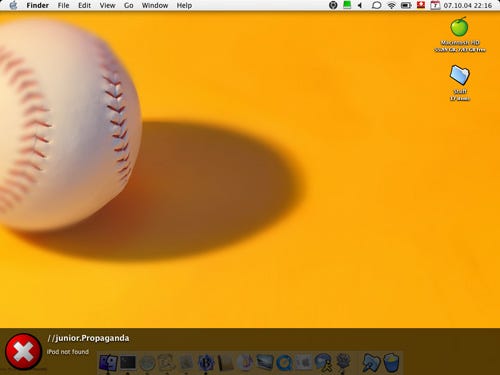
That slightly dimmed part of the screen is the notification area of my [Growl][] installation2 – and it’s notifying me that my iPod is not connected and thus can’t be updated right now.
Growl is a notification system that aims at unifying the way applications notify the user of events and required actions and such. It’s very similar to [LanOSD][] that I talked about in an earlier article on [UI Notifications][].3
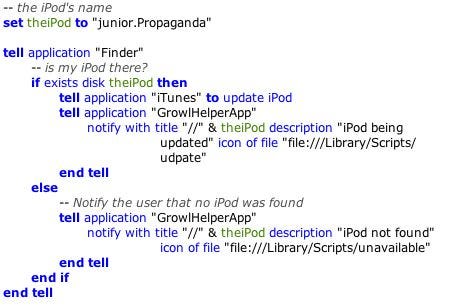
Now, the beauty of this is, that it just works: Thanks to [Quicksilver][]’s Triggers, I have a global keyboard shortcut that will launch an Apple Script. ## The sales pitchWhat I like most, though, is the integration and the speed at which so useful technologies like Growl gets integrated into other applications. The list on their website is already long (18 entries at the time of this posting) and the commits to the leading-edge code repository add one or more each week – quite impressive for an application that’s only seen one point release to date.
“What’s the point?” you might ask. Well, I bet if you try (Growl) notifications for some time, you will understand what the point is. In my opinion, there’s nothing more useful than notifications that are just here when they’re really needed. Let me illustrate.
Did you ever work on a PC with Windows XP installed on it, a network and/or WLAN card installed? If you’re not connected with a cable or if you Wireless network is not available, Windows XP will bug you with notifications that are quite persistent. Every time you add some kind of USB device, Windows will bug you with a “notification” – as if you didn’t know that you just plugged that USB stick into the plug. These notifications are mostly useless – and distracting, especially for the unexperienced.
OS X in general and Growl in particular have a different approach: Unless you clutter your desktop and menubar with stuff that should not sit there (I try to reduce that to a minimum :)), you’ll see nothing unless something happens – and normally, you define what events are noteworthy, and not the system.4
The future
I recently dumped [LaunchBar][] in favour of [Quicksilver][].5 I miss some features like LanunchBar’s adaptive, intelligent search algorithm that is more intuitive to use than Quicksilver. But I love the new features much more. One of the reasons for that is Notifications. There are loads of plugins and one of the most beautiful uses of the Quicksilver/Growl combo is the iTunes plugin. It not only lets you control iTunes by keyboard, no, it will, without any menu bar item polling like insane, notify you of track changes.
Because you can choose to use Growl for Quicksilver notifications, you will get notifications that fit the overall feeling. Pure bliss. It’s just there.
There’s other stuff about Quicksilver that make it superior to LaunchBar for certain uses and you can get a good idea on the possibilities at the very excellent 43 Folders’ [Quicksilver][43 folders] page.
I expect [Spotlight][], the upcoming search technology of Mac OS X 10.4 “Tiger”, to add another layer of beauty to the list of useful technologies. In fact, I hardly can wait anymore until Tiger will be released in the wild.
Did I mention [Information][] [at your][] [fingertips][]? Well, at the end of the day, it all adds up to that.
We have the information we need. Because we can. When we need it and the way we need it.
[growl]: http://growl.info “Growl - Notification system”[Veer Wallpaper]: http://www.veer.com/ideas/wallpaper/ “Veer Wallpaper”[Quicksilver]: http://quicksilver.blacktree.com “Quicksilver”[UI Notifications]: /2004/08/16/ui-notifications-lanosd/ “UI Notifications”[Daniel Wilson]: http://blog.wilsonet.com “Membranophonist’s Ramblings”[LanOSD]: http://oomz.net/Lanosd/ “LanOSD Homepage”[LaunchBar]: http://obdev.at/products/launchbar/ “LaunchBar”[43 Folders]: http://www.43folders.com/quicksilver “43 Folders”[Spotlight]: http://www.apple.com/macosx/tiger/spotlight.html “Spotlight – Search Technology”[Information]: /2004/08/03/to-dump-or-not-to-dump/ [at your]: /2004/06/29/dashboard-vs-konfabulator/ [fingertips]: /2004/06/29/spotlight-is-sweet/
Ain’t it beautiful? ↩︎
I’m using the “MusicVideo” display plugin that’s currently only available if you build Growl from source. ↩︎
Thanks to [Daniel Wilson][] who pointed me to Growl in the first place! ↩︎
Just get me right here: I work with PC’s daily – not only because I have to, but also because I want to. But I prefer my Mac, sometimes just for the sheer beauty of the Technology: It makes such fabulous stuff like these notifications a snap to implement. ↩︎
After I had paid the upgrade fee, though … :) ↩︎